Share
Sharing is caring, pass this along to others who might find it useful or inspiring.
Introduction


2025-09-09T01:18:03.000Z • 5 mins
Introduction
Today, many apps on Microsoft Azure access resources in Google Cloud Platform (GCP). For example, they often use files stored in Google Cloud Storage (GCS). Traditionally, sharing a static service account key file was necessary. However, this creates security risks and makes key management critical.
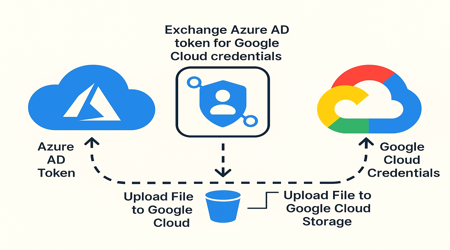
To solve this, Google Cloud has introduced a better and more secure method. Instead of keeping a permanent key, an Azure app can temporarily use a GCP service account to access storage.
For example, let’s say we have a Java Spring Boot app running on Azure. It needs to read/write files in a GCS bucket. Normally, we’d give it a JSON key file, but that comes with issues like leaks, rotation problems, and poor scalability.
So, the modern solution is to use temporary credentials tied to a service account. That way, we bridge the gap between Azure and GCP securely.
A common use case is accessing Google Cloud Storage (GCS) from an app hosted on Azure. But how do you bridge two major cloud ecosystems while keeping security tight?
That’s where temporary credentials and service accounts come into play. In this blog post, we’ll cover the concept, setup, and integration process. This will help you enable cross-cloud storage for easier access.
“Connecting systems across cloud providers can be tricky, but it doesn’t have to be risky”
Overview of Azure and Google Cloud Platform
Before we dive into the setup, let’s take a quick look at the two key players here:
Microsoft Azure is a full cloud computing platform. It provides services such as computing, analytics, storage, and networking.
Google Cloud Platform (GCP) offers similar services. It focuses on scalability, AI/ML, and easy data storage. Key products include Google Cloud Storage.
While they have similar features, their identity and permission models differ. This means that securely bridging them needs some extra setup.
Understanding Service Accounts in GCP
In GCP, a service account is a unique Google account. It helps applications or virtual machines make authorised API calls.
Think of it as a digital identity for your app. It doesn’t belong to a user, but it can be granted roles and permissions, just like a real person.
Pre-requisites
Before you dive in, make sure you have:
A GCP Project with a GCS Bucket
An Azure Active Directory tenant
A Java Spring Boot App running in Azure (App Service, AKS, or VM)
Java dependency: google-cloud-storage
Admin rights on both Azure and GCP
Why Not Use a Service Account Key?
Using a JSON key file means you’re hardcoding sensitive credentials. If that key leaks (via logs, builds, Git, etc.), anyone can act on behalf of your service account.
By using OAuth 2.0 token exchange and Workload Identity Federation, you:
Eliminate static keys
Get short-lived access tokens
Leverage Azure’s Managed Identity
Improve traceability and revocation
Real-Time Examples
1. Financial Services — Secure Cross-Cloud Data Processing A global investment bank runs its core analytics platform on Azure Kubernetes Service (AKS) but stores large datasets (market feeds, trading logs) in Google Cloud Storage because of GCP’s scalable storage and Big Query integration.
Instead of managing static service account keys (a compliance risk), they use Workload Identity Federation .
Azure pods assume a temporary federated identity to fetch GCS objects, run calculations, and push back results.
This avoids embedding long-term secrets in containers, ensuring compliance with regulations like FINRA and GDPR .
2. Media & Entertainment — Cross-Cloud Content Delivery A video-streaming platform hosts its backend services on Azure App Service but leverages GCS buckets for storing massive video libraries due to its low latency with YouTube CDN integration.
The Azure service authenticates via federated tokens to access GCS and stream media.
This prevents operational headaches of rotating JSON keys while supporting millions of video requests daily.
Example workflow: When a user uploads a video → Azure app validates → securely stores in GCS using short-lived credentials.
3. Healthcare — Multi-Cloud AI Model Training A health-tech startup builds AI diagnostic models in Azure Machine Learning but keeps anonymized MRI scans in GCS for HIPAA-compliant storage.
Azure ML workloads use Managed Identity + Workload Identity Federation to fetch training data directly from GCS.
Once trained, models are stored back in Azure for deployment.
Temporary credentials ensure sensitive health data isn’t exposed via leaked static keys.
4. Retail & E-Commerce — Inventory & Data Sync A global retail company uses Azure for ERP (SAP on Azure) while storing product images and transaction logs in Google Cloud Storage for analytics.
Their ERP system running in Azure uses a federated identity to securely sync daily inventory snapshots with GCS.
GCP services (like Dataflow + BigQuery) then process the data for demand forecasting.
This setup ensures real-time cross-cloud data sharing without manual credential handling.
5. Gaming Industry — Cross-Platform Player Data An online gaming company hosts its gaming backend on Azure but uses GCS buckets for storing user-generated content (maps, mods, skins).
When players upload assets, the Azure app requests a temporary token to upload directly to GCS.
This keeps downloads/uploads scalable while avoiding any permanent key exposure.
Bonus: Using temporary credentials prevents abuse from compromised gaming clients.
Temporary Credentials: Temporary credentials are short-lived tokens. They give you access to resources for a limited time. This is great when you want to avoid keeping long-term secrets or keys.
Why use them?
Security: They expire quickly, limiting the risk window.
Compliance: No need to hardcode access credentials.
Flexibility: Easily generated and revoked when needed.
In our case, Azure will take on a temporary identity. This lets it access a GCP service, like a GCS bucket, without needing
Setting Up Google Cloud Storage (GCS)
Let’s now move on to configuring GCS to accept requests from Azure.
Creating a GCS Bucket
To start, create a GCS bucket that will hold the data you want Azure to access:
Go to the GCP Console .
Navigate to Storage > Buckets .
Click Create and follow the wizard:
Choose a globally unique name (e.g., my-azure-access-bucket)
Select your preferred location and storage class.
Click Create to finalize.
Your bucket is now live and ready to accept objects.
Configuring Bucket Permissions
You’ll need to grant the proper roles to the service account that will be used for access.
Go to your bucket settings.
Click on the Permissions tab.
Click + Grant Access.
Enter the email of the service account.
Assign a role such as:
Storage Object Viewer (read-only access)
Storage Object Admin (full object-level access)
This step ensures that only your authorized identity can interact with the bucket.
Creating a Service Account in GCP
Next, you need to create a service account that Azure can impersonate to access the bucket:
Go to IAM (Identity and Access Management) & Admin > Service Accounts.
Click + Create Service Account.
Give it a name (e.g. azure-gcs-accessor).
Assign the required role (e.g. roles/storage.objectViewer) or your desired permission level.
Click Done.
Step-by-Step Integration (Azure → GCP with Java SDK)
Step 1: Create a GCP Service Account
gcloud iam service-accounts create azure-workload-access \
- display-name="Azure Workload Federation SA"
Then grant it access to GCS:
gcloud projects add-iam-policy-binding YOUR_PROJECT_ID
--member="serviceAccount:azure-workload-access@YOUR_PROJECT_ID.iam.gserviceaccount.com"
--role="roles/storage.objectAdmin"
Step 2: Set Up Workload Identity Pool & Provider
Create a Workload Identity Pool:
gcloud iam workload-identity-pools create azure-pool
--project=YOUR_PROJECT_ID
--location="global"
--display-name="Azure Pool"
Then add a provider:
gcloud iam workload-identity-pools providers create-oidc azure-provider
--project=YOUR_PROJECT_ID
--location="global"
--workload-identity-pool="azure-pool"
--display-name="Azure OIDC Provider"
--attribute-mapping="google.subject=assertion.sub,attribute.aud=assertion.aud,attribute.oid=assertion.oid"
--issuer-uri="https://sts.windows.net/YOUR_AZURE_TENANT_ID/" — project=YOUR_PROJECT_ID
Step 3: Grant Federation Access
Allow Azure app identities to impersonate the GCP Service Account:
gcloud iam service-accounts add-iam-policy-binding
azure-workload-access@YOUR_PROJECT_ID.iam.gserviceaccount.com
--role="roles/iam.workloadIdentityUser"
--member="principalSet://iam.googleapis.com/projects/YOUR_PROJECT_NUMBER/locations/global/workloadIdentityPools/azure-pool/attribute.aud/YOUR_AZURE_CLIENT_ID"
Step 4: Register Your App in Azure
Go to Azure Portal: Azure AD → App Registrations → New Registration
Take note of:
Client ID
Tenant ID
Step 5: Azure — Assign a Federated Credential to the App
Go to the registered app — Click “Certificates & secrets” > “Federated credentials” > Add credential
Configure :
Issuer:
Subject Identifier: system-assigned managed identity or specific client ID.
Audience: set to the client ID of your Azure app.
Step 6: Java — Spring Boot Code to Upload Files
Add dependencies
// build.gradle
implementation 'com.google.cloud:google-cloud-storage:2.37.0'
implementation 'com.google.auth:google-auth-library-oauth2-http:1.20.0'
Write the logic to exchange Azure token with GCP credentials
import com.google.auth.oauth2.ExternalAccountCredentials;
import com.google.auth.oauth2.GoogleCredentials;
import com.google.cloud.storage.*;
import java.io.*;
import java.net.URI;
import java.util.Collections;
public class GcsUploadService {
public void uploadFile(String bucketName, String objectName, byte[] data) throws
IOException {
// Load the credentials from the config file (see below)
GoogleCredentials credentials = ExternalAccountCredentials.fromStream(
new FileInputStream("/path/to/azure-federated-credentials.json")
).createScoped(Collections.singletonList("https://www.googleapis.com/auth/cloud-platform"))
;
Storage storage = StorageOptions.newBuilder()
.setCredentials(credentials)
.build()
.getService();
BlobId blobId = BlobId.of(bucketName, objectName);
BlobInfo blobInfo = BlobInfo.newBuilder(blobId).build();
storage.create(blobInfo, data);
}
}
azure-federated-credentials.json (example)
Replace placeholders as per your Azure + GCP setup:
{
"type": "external_account",
"audience":
"//iam.googleapis.com/projects/PROJECT_NUMBER/locations/global/workloadIdentityPools/
azure-pool/providers/azure-provider",
subject_token_type": "urn:ietf:params:oauth:token-type:jwt",
"token_url": "https://sts.googleapis.com/v1/token",
"credential_source": {
"url":
"http://169.254.169.254/metadata/identity/oauth2/token?api-version=2018-02-01&resource=
https://management.azure.com/",
"headers": {
"Metadata": "true"
},
"format": {
"type": "json",
"subject_token_field_name": "access_token"
}
}
"service_account_impersonation_url":
"https://iamcredentials.googleapis.com/v1/projects/-/serviceAccounts/azure-workload-access
@YOUR_PROJECT_ID.iam.gserviceaccount.com:generateAccessToken"
}
Step 7: Deploy to Azure
Make sure the Managed Identity is enabled on your Azure app (if you’re using Azure App Service, AKS, etc.).
Store the JSON credentials file securely (e.g., in Azure Key Vault) and load it via environment variable or secure mount.
What we did
Created GCP service account + permissions
Created Workload Identity Pool and Provider
Allowed Azure identity to impersonate GCP service account
Set up Azure AD App + Federated Credential
Wrote Java code using ExternalAccountCredentials
Ran from Azure using Azure Managed Identity token
Final Thoughts
This setup gives your cross-cloud apps secure, temporary access to GCP resources without the dangers of static keys.
It’s cloud-native, scalable, and aligns with zero-trust principles. If you’re working in a multi-cloud world, this is the modern way to go.
“We needed our Azure apps to talk to Google Cloud without sharing secrets. This setup made it simple and secure.”
Cross-Cloud Access: Using Workload Identity Federation to Connect Azure with Google Cloud Storage was originally published in tech.at.core on Medium, where people are continuing the conversation by highlighting and responding to this story.